The Affiliates Manager plugin provides a simple registration and login process for your affiliates. This page explains the complete process, from submitting an application to accessing the affiliate dashboard.
Affiliate Pages Created by the Plugin
When you install and activate the Affiliates Manager plugin, it automatically creates the following three pages:
1. Store Affiliates
This is the main affiliate portal page. Visitors can use it to register for an affiliate account or log in to an existing account.
After an approved affiliate logs in, this page displays their affiliate dashboard.

2. Register
This page contains the affiliate registration form. New affiliates can enter their information and submit an application.

3. Affiliate Login
This page contains the affiliate login form. Approved affiliates can use their username and password to access the affiliate dashboard.

Affiliate Registration and Approval Process
When a visitor clicks the Register link, they are taken to the affiliate registration page.
After the registration form is submitted:
- The site administrator receives an email notification about the new affiliate application.
- The administrator can review the application from the WordPress dashboard.
- The administrator can approve or decline the application.
- If the application is approved, the affiliate receives an account approval email.
- A WordPress user account is automatically created for the affiliate.
- The affiliate can then log in and access the affiliate dashboard from the Store Affiliates page.
Automatically Approving New Affiliates
If you do not want to approve each application manually, you can enable automatic approval.
Go to:
Affiliates > Settings > General
Then enable the Automatically approve a new affiliate option.
When this option is enabled, new affiliate applications are approved automatically.
Accepting the Terms and Conditions
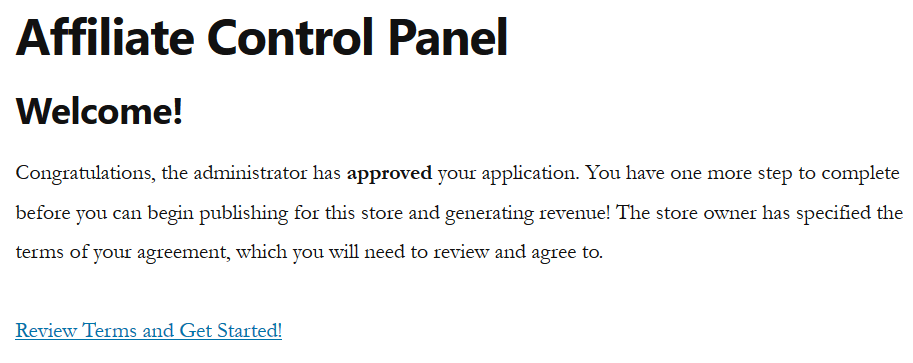
The first time an approved affiliate logs in, they will be asked to review and accept the affiliate program’s terms and conditions.
This step appears on the Store Affiliates page.

Selecting a Payout Method
After accepting the terms and conditions, the affiliate will be asked to select a payout method and provide the required payment details.
Available payout methods may include:
- PayPal
- Check
- Manual payment
The available options depend on how the affiliate program has been configured by the administrator.

Accessing the Affiliate Dashboard
After the affiliate submits their payment details, the account becomes active and ready to use.
From the affiliate dashboard, the affiliate can:
- View their referral statistics and account information.
- Access promotional creatives configured by the administrator under My Creatives.
- Generate a referral link to any page on your website using the Generate Referral URL button.
The affiliate can now begin promoting your products or services and earning commissions from qualified referrals.
